
Frequently Asked Questions
Below you will find some of our most frequently asked questions and answers. If your questions are not listed here, please email us at: info@avtrading.com
FAQs - Indicators
How can I get access to the AV indicators?
Once we have received your order for a free trial or subscription, we will immediately start processing it and send you an order confirmation with instructions.
After you sign up, it usually takes between an hour to a few hours to grant you access to the “invite-only script” on TradingView.
How do I add the indicator to the TradingView chart?
1. Go to the TradingView website www.tradingview.com and log in to your account.
2. Click on Charts or open any chart (“Full-featured chart”).
3. Click on the “Indicators and Strategies”-icon [ƒx] located at the top of the TradingView chart.
4. A new window will appear with all Built-ins, Public scripts and Invite-only scripts.
5. Click “Invite-only scripts” and select the AV indicators you want to use.
Does this indicator work with a free TradingView account?
Yes, you can use the AV indicators with a free TradingView account (Basic plan).
With a free TradingView account, you can set up one (1) live alert and have up to three (2) indicators on your chart active at any given time. If you want more alerts, just upgrade to a TradingView Pro or Premium plan: https://www.tradingview.com/gopro/
In which markets can the indicators be used?
The indicators can be used for all markets, instrument types, and timeframes.
If I´m completely new to trading, can I use the indicators?
Yes, you don’t need much experience to understand the signals provided by the algorithms from our indicators.
If you’re completely new to trading, we recommend starting with a demo trading account until you become familiar with how everything works.
Can I use it on my mobile phone?
Yes, it can be installed on any device (iOS and Android).
Download the TradingView app on your phone, then log in with your account/username and start using our indicators wherever you go.
How do the AV indicators work?
Our indicator scripts are based on algorithms that are built, optimized and tested by us to minimize the price < > signal lag effect that at the same time produce high-quality, high probability signals.
The indicator scripts are used on the TradingView charting platform, and you can receive trading signals and alerts straight to your smartphone, desktop, tablet, or any other device. You can choose whether the trading signal/alerts
How can I trust that your indicators really work?
All our indicators generate very accurate trading signals and are used by many successful traders.
You can try the indicators yourself totally free. We offer a 21-day Free Trial.
Are the indicators only for professional traders?
No, all our indicators are 100 % non-repainting indicators. Unlike repainting indicators, non-repainting indicators do not change their values after the price bar is closed.
We use Pine Script ver. 4, and we don´t use the Security() or bar_index function when developing scripts.
Do the indicators repaint?
Our indicators are used by many professional traders, but you don´t need much experience to understand the signals provided by AV indicators.
We aim to simplify the trading process for you and the indicators provide accurate trading signals, whether you are a beginner or a professional trader.
However, trading can be difficult and it can take some time to learn regardless of our accurate trading signals on your charts. If you’re new to trading and/or technical analysis in general, we recommend starting with a demo account (“paper-trading”) until you become familiar with how everything works.
What results should I expect from using your indicators?
You will gain professional trading skills, and the signals will allow you to increase the possibility of making consistent profits, especially if used systematically.
Can I use the indicators for my local market?
Yes, the indicators can be used for your local stock market. You can get instrument charts and signals on all exchanges around the world as long as they are listed instruments and on the TradingView platform.
Does it work for MT4?
The AV indicators work on the TradingView platform. It doesn´t work for other platforms.
Do you offer support?
Yes, email us at support@avindicators.com if you have any questions, and we will be there to assist. And please include your TradingView username in the message.
You can also check out our FAQs.
Does the indicator work on all timeframes?
Yes, the indicators can be used on all timeframes (for example: 5min, 15min, 1h, 2h, 1D); but if you want to use very low or high timeframes, you might want to adjust the indicator settings a bit to optimize the indicator signals.
Does the indicator work on all timeframes?
Yes, the indicators can be used on all timeframes (for example: 5min, 15min, 1h, 2h, 1D); but if you want to use very low or high timeframes, you might want to adjust the indicator settings a bit to optimize the indicator signals.
Do you guarantee that I will make a profit?
All our indicators generate very accurate trading signals and are used by many successful traders.
Trading in the financial markets can be challenging and take time to learn, regardless of our high probability signals in your chart. Whether you will be successful or not is up to you: you need to develop your own trading style and strategy.
By using the AV indicators, you will increase your chances of succeeding dramatically. Our indicators will generate high probability signals of when to buy or sell a financial instrument. We have developed these indicators and trading signals to appear when there most likely is going to be a move in the market, and the signals will tell when it is optimized to enter or exit a position.
If you’re new to trading and/or technical analysis in general, we recommend a demo account (“paper-trading”) until you become familiar with how it works.
Never invest more than you are willing to lose. Past performance is not indicative of future results. AV Indicators is not a licensed financial advisor, broker, or dealer. We are not responsible for any liabilities that might arise as a result of using our indicators and trading signals. The information provided by AV indicators does not constitute a recommendation to buy or sell a financial instrument. By purchasing and/or subscribe to our indicators to be used on the TradingView platform, you agree to our Terms of service.
How does your subscription service work?
Once your order has been confirmed, you will receive an email where we will confirm that you have started a free trial or subscribed to our service. You will get additional information on accessing the AV indicators and how you can manage your account and subscription.
Do you offer a free trial?
Yes, we currently offer a 21-days free trial. You can start your free trial here.
How long does it take to get access to the indicators on TradingView?
After signing up, it usually takes between an hour to a few hours to grant you access to the invite-only scripts on TradingView.
It is a manual process done by us, and it depends somewhat on the market situation and the number of inquiries/orders. Typically during the day , full access is granted much faster, and you will receive an email with additional instructions.
If you can´t find the indicator scripts on TradingView: Please check back again after a while and also make sure that you update/refresh your browser or open a new browser window.
(Sometimes it also may take some time for TradingView to update the information on its servers.)
If you still are missing delivery on your free trial or subscription, please do not hesitate to contact us immediately at: support@avindicators.com
I can´t find the indicator scripts on TradingView?
It usually takes between an hour to a few hours to grant you access to the invite-only scripts on TradingView. Sometimes it may take some time for TradingView to update the information on its servers.
If you can´t find the indicator scripts on TradingView under the “Invite-only scripts”-tab: Please check back again after a while and also make sure that you update/refresh your browser or open a new browser window.
If you still are missing delivery on your free trial or subscription, please do not hesitate to contact us immediately at: support@avindicators.com
What are your business hours and time zone?
Our general business hours are from 09:00 to 18:00 on Monday to Friday. But we often work during the evenings and weekends to help our customers with various issues and give them fast access to the indicators.
Can I cancel the subscription before the free trial ends?
You can cancel your subscription at any time by logging into your account on our website www.avindicators.com or by contacting us at support@avindicators.com.
What´s your cancellation policy?
You can cancel your subscription at any time by logging into your account on our website www.avindicators.com
What payment methods do you accept?
AV indicators accept payments by UPI only(Gpay,Phone Pay,BIHM,Paytm).
Do you give refunds?
During the free trial period, you can cancel at any time and will not be charged.
When the free trial is over and the subscription service has started, we do not offer refunds on subscriptions already billed. But cancellations of subscriptions can be made at any time.
What is the error message: "study_not_auth"?
If you get an error message, “study_not_auth”, when trying to access the indicator script in TradingView, you either have to refresh your browser and make sure you are logged in with the correct TradingView username (previously provided to us when ordering) or if you are not a subscriber, you will see this error message when you try to add our script to your chart.
You can order your subscription here.
Does the subscription price include future updates?
Yes, all future updates are free of charge.
How to add indicators to your chart?
Once your order is confirmed and access has been granted, you will need to add the AV indicators to your chart on TradingView.
Our indicators are “Invite-only scripts“, meaning the code is protected, and access is granted individually to each user.
Below, we have outlined a few simple steps to help you add an ‘Invite-only script’ to your TradingView chart.
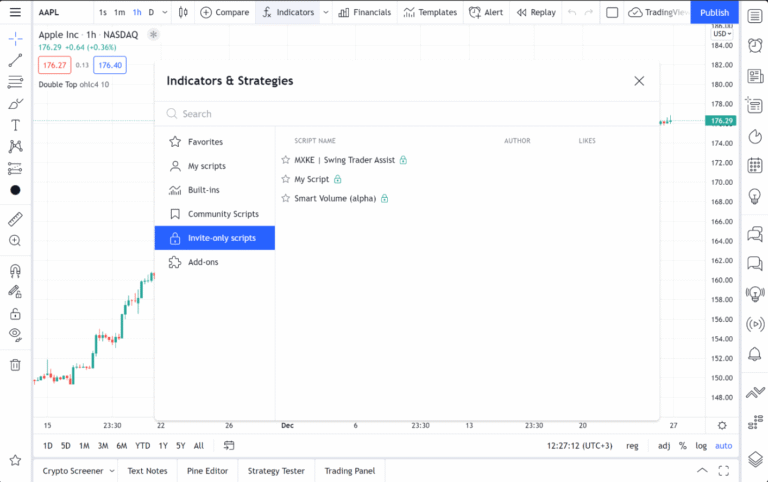
(click on image to enlarge)
After signing up, access to the invite-only script on TradingView is typically granted within an hour to a few hours. If you don’t see any ‘Invite-only scripts,’ please be patient and check back later. Also, ensure you refresh your browser or open a new browser window.
To optimize and personalize your settings, refer to the indicator settings instructions.
If you’re new to the TradingView charting platform, we recommend starting with the web-based application on a desktop computer.
How to add indicators to Desktop/Laptop/Computer:
1. Go to the TradingView website www.tradingview.com and log in to your account.
2. Navigate to the chart window where you wish to add the indicator. (Click on “Chart” or open any chart “Full-featured chart”).
3. At the top of the TradingView chart panel, you will see a toolbar. Click on the ‘[Indicators]’ button. Or click anywhere in the chart and press the ÷ key.
4. Once you click on that, a new window will appear with a list of all available indicators (public scripts, and invite-only indicators).
5. Click on “Invite-only scripts” to gain access. Select the AV indicator(s) you wish to use and click on the indicator name to add the script to your account and chart. You are now ready to start!
Optimizing the indicator settings is crucial. Since each financial instrument has its own unique rhythm, you must adjust and fine-tune the settings to optimize trading signals
How to add indicators to Smartphone/Mobile:
1. Make sure you have downloaded the TradingView-app for your smartphone.
2. Open the TradingView-app, press “Menu” and log in to your account with your TradingView username and password.
3. Click on “Chart” and then press the “+” symbol (below the chart).
4. A new window will appear showing all the TradingView features.
5. Click on “Indicators” [ƒx], located at the top. A new window will appear showing all the public scripts and invite-only indicators and strategies.
6. Click on “Invite-only scripts” to gain access. Select the AV indicator/s you want to use and click on the indicator name to add the indicator script to your account and chart. You are now ready to go!
It is very important that you optimize the indicator settings. Each financial instrument has its own rhythm, so you must adjust and fine tune settings to optimize the trading signals.
How to optimize the indicators settings?
Each financial instrument has its own rhythm and oscillation, so if you want to optimize your trading results, sometimes you must learn to tune and tweak the indicator settings to improve signal generation accuracy. You also need to test different settings of the indicator as this will help you finetune the signals. Settings can sometimes be very individual, depending on your trading style and timeframe used.
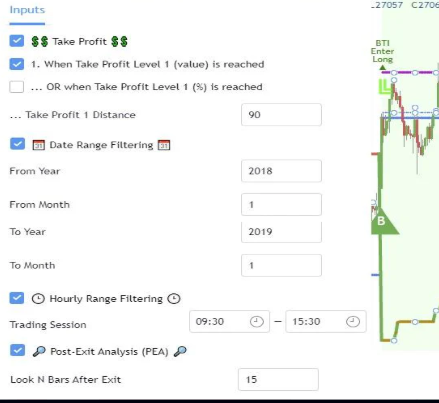
How to adjust:
1. At the top left corner of your TradingView chart window (below the Symbol area), you will find your active indicators listed. Point to the current indicator and then click the settings icon ⚙️ for the indicator you want to set.
2. A settings window will appear and display all available settings and inputs for the indicator. You can also change style, colors, etc. under the Style tab.
3. You must find the best settings for your trading strategy or stick to the default settings. Change input values (by raising or lowering the input values) to optimize the indicator settings for the selected instrument and timeframe used. (Different settings may apply to different instruments and also to different market periods. A more volatile market regime may require a different approach and strategy for the same instrument.)
4. Finetuning: After you have tested the new input values, go back to Settings and try to “tweak” the settings a bit more. You can play with the parameters until you find the settings and signals that work best for your trading style and strategy.
Do you have any other questions?